

Description
Download MigrateEmails Gmail Backup Tool – Free Gmail Backup & Secure Email Export
Overview
MigrateEmails Gmail Backup Tool is a free Windows‑based application created by the developers at MigrateEmails. Falling under the Backup & Cloud Storage category, this utility gives everyday users a reliable, no‑cost way to safeguard their Gmail data. Whether you need to preserve important messages for legal compliance, protect cherished personal correspondence, or simply create an offline archive of your email history, the tool offers a straightforward solution. It can back up not only the body of each email but also attachments, contacts, calendars, and even custom labels, ensuring that nothing is left behind. The interface is deliberately minimalist: a clean dashboard, clearly labeled buttons, and step‑by‑step wizards guide you from authentication to the final export. Security is baked in; the software never stores your password, instead using OAuth 2.0 to obtain a read‑only token from Google, which is discarded after the backup completes. Because the backups are saved locally on your computer, you retain full control over the data, avoiding any third‑party cloud exposure. The tool also supports incremental backups, meaning after the first full export you can schedule or manually trigger a quick sync that only captures new or changed items, saving time and disk space. Overall, MigrateEmails Gmail Backup Tool is positioned as a dependable, user‑friendly option for anyone who wants to keep a personal copy of their Gmail account without paying for a premium service.
Key Features
- Full Email Export: Saves every email, including body text, HTML formatting, and embedded images.
- Attachment Preservation: All file attachments are stored in their original format, preserving size and metadata.
- Contact & Calendar Sync: Export Google Contacts and Calendar events into CSV or iCal files.
- Label & Folder Mapping: Keeps Gmail labels intact, recreating them as folder structures on your PC.
- Incremental Backup: Detects changes since the last run, allowing fast, lightweight updates.
- OAuth 2.0 Authentication: Secure token‑based login; your password never touches the application.
- Offline Access: Backed‑up data is stored locally, enabling read‑only access without an internet connection.
- Export Formats: Choose between MBOX (compatible with Thunderbird, Apple Mail) or EML files for maximum flexibility.
- Multi‑Threaded Processing: Utilises multiple CPU cores to speed up large mailbox exports.
- Free & No Ads: Completely free to download and use, with no hidden fees or ad interruptions.
Installation & Usage Guide
Getting started with MigrateEmails Gmail Backup Tool is intentionally simple. First, visit the official MigrateEmails website and click the Download for Windows button. The installer is a lightweight .exe file (approximately 25 MB) that works on Windows 7, 8, 10, and 11. After the download completes, run the installer and follow the on‑screen prompts: accept the license agreement, choose an installation folder (the default works for most users), and click “Install.” Once the program finishes, launch it from the desktop shortcut or the Start menu.
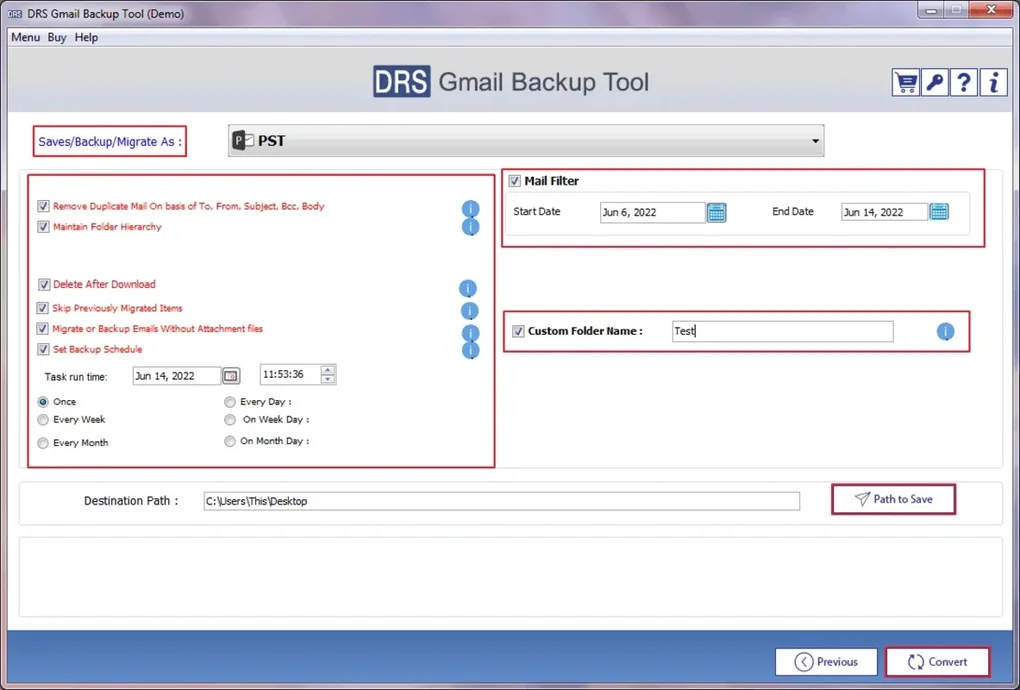
On first launch, you’ll be greeted by a clean welcome screen. Click the Connect Gmail button, which opens a Google OAuth window. Sign in with the Gmail account you wish to back up, grant the requested read‑only permissions, and you’ll be redirected back to the application. The next step is selecting what you want to back up. Use the checkboxes to include emails, attachments, contacts, and calendars. You can also specify particular labels or date ranges if you don’t need the entire mailbox.
Choose a destination folder on your local drive – it’s advisable to pick a location with ample free space, as large mailboxes can consume several gigabytes. Then hit the Start Backup button. The progress bar will show real‑time status, and the log pane displays detailed messages such as “Downloading attachment: invoice_2023.pdf (2.4 MB).” For massive accounts, you can enable the “Run in background” option, allowing you to continue using your computer while the backup proceeds.
When the process finishes, the tool presents a summary screen indicating total messages exported, size of attachments saved, and any warnings (e.g., items that could not be downloaded due to permission issues). You can now open the generated MBOX file in email clients like Mozilla Thunderbird, or explore the folder hierarchy to view individual EML files. For incremental backups, simply click the Sync Changes button the next time you run the program; the software will compare the current mailbox with the existing backup and only download new or modified items.
Should you encounter any errors, the built‑in “Help & Support” tab links to a knowledge base, and the log file can be exported for troubleshooting. Overall, the installation and usage workflow is designed to be as frictionless as possible, even for users with limited technical expertise.
Compatibility, Pros & Cons
Operating System: Windows 7, 8, 10, 11 (64‑bit)
Pros
- Completely free with no hidden fees or subscription model.
- Secure OAuth 2.0 authentication ensures your password is never stored.
- Full export of emails, attachments, contacts, and calendars in widely compatible formats.
- Incremental backup capability saves time and disk space on subsequent runs.
- Lightweight installer and modest system requirements; runs well on older hardware.
- Multi‑threaded processing accelerates large mailbox exports.
- Offline access to backups means you can read your email archive without internet.
- Clear, step‑by‑step UI that guides even non‑technical users.
- No ads, pop‑ups, or forced upgrades – a genuinely clean experience.
- Regular updates from the developer keep compatibility with Google’s API.
Cons
- Currently Windows‑only; no native macOS, Linux, Android, or iOS client.
- Does not offer cloud storage integration (e.g., direct export to Dropbox or Google Drive).
- Large mailboxes may require considerable local disk space during the export process.
- Advanced scheduling (automatic daily/weekly backups) is not built in; requires manual initiation.
- Limited customization of export file naming conventions.
Frequently Asked Questions
Is MigrateEmails Gmail Backup Tool really free?
Yes, the tool is completely free to download and use. There are no hidden subscription fees, no premium tiers, and no advertisements within the application.
Can I back up multiple Gmail accounts at once?
The current version supports one account per session. To back up additional accounts, simply sign out and repeat the authentication process with the other Gmail address.
What file format does the backup use?
You can choose between MBOX (compatible with most desktop email clients) or individual EML files for each message. Attachments are saved in their original format alongside the email files.
Is my Gmail password stored by the application?
No. The tool uses Google’s OAuth 2.0 protocol, which issues a temporary read‑only token. The token is discarded after the backup finishes, so your password never touches the software or any external server.
Can I schedule automatic backups?
Automatic scheduling is not built into the free version. However, you can create a Windows Task Scheduler job that launches the program with appropriate command‑line arguments to achieve a similar result.
What happens if the backup process is interrupted?
The application maintains a checkpoint file. When you restart the backup, it resumes from the last successfully saved message, preventing duplicate downloads and saving time.
Conclusion & Call to Action
If you’re looking for a reliable, cost‑free method to protect your Gmail data on a Windows PC, MigrateEmails Gmail Backup Tool delivers exactly what you need. Its emphasis on security, ease of use, and comprehensive export options makes it a standout choice among free backup utilities. While the lack of native macOS or mobile support may be a drawback for some, the core functionality—full email, attachment, contact, and calendar export—covers the essential requirements for personal users, freelancers, and small businesses alike.
Take the first step toward safeguarding your communications today. Download MigrateEmails Gmail Backup Tool now, run the quick setup, and create a local, searchable archive of your Gmail account. With incremental backups and offline accessibility, you’ll have peace of mind knowing that even if Google experiences an outage, your important messages remain safely stored on your own hardware.
Don’t wait for a data loss incident to act. Click the download button below, follow the simple installation guide, and enjoy a secure, ad‑free backup experience that you can trust.
Download MigrateEmails Gmail Backup Tool – Free, Secure, and Easy
MigrateEmails Gmail Backup Tool offers a clean, user‑friendly interface combined with robust security via OAuth. The ability to export emails, attachments, contacts, and calendars in both MBOX and EML formats makes it versatile for a range of workflows. While limited to Windows, its free price tag and reliable incremental backup feature outweigh the platform restriction for most personal and small‑business users.
Guides & Tutorials for MigrateEmails Gmail Backup Tool
How to install MigrateEmails Gmail Backup Tool
- Click the Preview / Download button above.
- Once redirected, accept the terms and click Install.
- Wait for the MigrateEmails Gmail Backup Tool download to finish on your device.
How to use MigrateEmails Gmail Backup Tool
This software is primarily used for its core features described above. Open the app after installation to explore its capabilities.
User Reviews for MigrateEmails Gmail Backup Tool 0
No reviews found





